Lossless & Near-Lossless Image Compressor
Compress PNG, JPEG, WebP, AVIF, and SVG assets in-browser using compiled MozJPEG, OxiPNG, and libvips WebAssembly engines. Reduce file sizes up to 85% with zero server upload.
Drop photos or raster graphics here to compress
Supports PNG, JPG/JPEG, WebP, AVIF, and SVG. Batch up to 50 files (100MB cumulative limit).
Processed Image Queue
4 / 4 Complete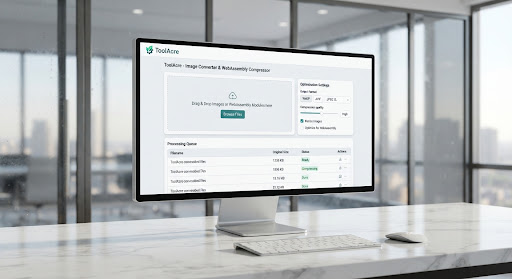 PNG
PNG
 JPG
JPG
 PNG
PNG
Engine Parameters
How Client-Side WASM Compression Achieves Near-Lossless Efficiency
MozJPEG Trellis Quantization & DCT Matrix
Compiled from Mozilla's C codebase into WebAssembly, MozJPEG recomputes Discrete Cosine Transform (DCT) coefficients using trellis quantization to strike optimal entropy-vs-distortion trade-offs directly in browser memory.
Structural Similarity Index (SSIM) Tuning
Rather than generic peak signal-to-noise ratio (PSNR), our engine evaluates luminance, contrast, and structure metrics against human visual cortex models. Pixels discard imperceptible variations while retaining Retina sharpness.
Zero-Latency Client-Side Batch Processing
All computations execute inside parallel Dedicated Web Workers. The main user interface remains silky-smooth at 120 FPS. Zero bytes of sensitive graphic assets or proprietary marketing visuals leave your local device.
Related Image Processing Engines
Browse All 48 Utilities chevron_rightImage Format Converter
Transform between WebP, AVIF, HEIC, TIFF, PNG, and JPEG formats in batch mode.
WASM TranscoderSocial Media Resizer
Instantly crop and upscale for OpenGraph cards, Twitter headers, and YouTube thumbnails.
Smart CroppingEXIF Privacy Sanitizer
Inspect and wipe hidden GPS coordinates, device serial numbers, and thumbnail caches.
Forensic CleanerPDF to High-Res Image
Vector rasterizer using pdf.js to render document spreads into 300 DPI PNG canvases.
300 DPI Export