Images to PDF Converter & Portfolio Binder
Convert JPG, PNG, WebP, SVG, and GIF images into clean, standardized multi-page PDF documents right inside your browser memory. Reorder slides, adjust margins, and bind documents without ever uploading raw bytes to a remote server.
Drop image files here to queue for PDF
Supports PNG, JPG, WebP, SVG, HEIC up to 50MB per file. Multi-page sequencing is preserved automatically.
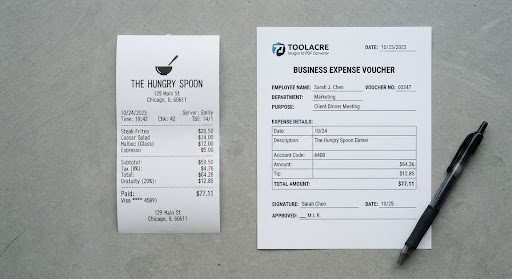 Page 1
Portrait
Page 1
Portrait
Q3_Tax_Receipt_HQ_EXP01.jpg
1800 × 2400 • 342 KB
 Page 2
Landscape
Page 2
Landscape
System_Architecture_Board_v4.png
2880 × 1800 • 590 KB
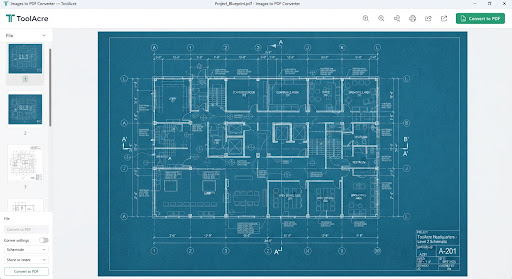 Page 3
Landscape
Page 3
Landscape
Infrastructure_Draft_Spec.webp
2400 × 1600 • 280 KB
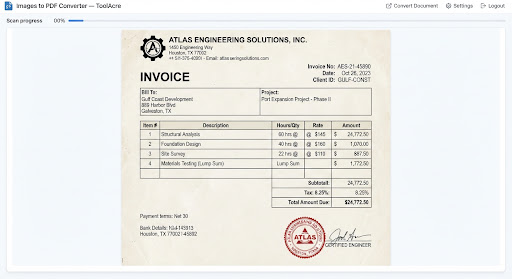 Page 4
Portrait
Page 4
Portrait
Supplier_Invoice_8820.png
1650 × 2200 • 410 KB
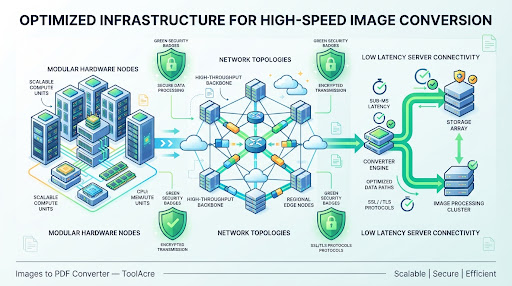 Page 5
Landscape
Page 5
Landscape
Node_Cluster_Topology.jpg
1920 × 1080 • 310 KB
 Page 6
Landscape
Page 6
Landscape
ISO_27001_Audit_Pass.png
2000 × 1414 • 518 KB
Page Layout Options
Calibrate output dimensions & compression
No files leave your computer. Images are encoded in a sandboxed WebAssembly execution thread.
Verified Cloud Infrastructure & High-Speed Developer Tooling Sponsors
How ToolAcre Encapsulates Images Without Compression Loss
Binary Header Inspection
Validates magic bytes for SOI markers (JPEG 0xFFD8) or PNG chunks. Direct byte stream extraction into ArrayBuffer.
DCTDecode Passthrough
JPEGs bypass canvas recompression. Raw compressed tables are directly injected into standard PDF XObject dictionaries.
Affine Transformation
Calculates aspect ratio preservation vectors, margins, and center offset coordinates using pure mathematical projection.
Cross-Reference Assembly
Assembles xref table, catalog, and trailer. Streams completed PDF directly through local Blob URL generation.
Direct In-Memory Image Encapsulation
Traditional online converters decode your image to bitmap and re-encode it, losing sharp text and producing compression artifacts. ToolAcre encapsulates native image streams directly into the PDF wrapper with zero generational degradation.
Color Space & ICC Profile Integrity
Engineered specifically for design portfolios and architectural blueprints. Embedded ICC color profiles (sRGB, Display P3, CMYK) are maintained so printed or client-rendered output retains accurate fidelity.
Air-Gapped HIPAA & GDPR Safe
Converting sensitive tax forms, passports, receipts, or medical charts? Because our converter executes in your browser's private V8 process, sensitive documents never cross the wire. Safe for strict corporate network policies.
Related Client Processing Utilities
High performance companion utilities from ToolAcre
PDF Merge & Stitch
Combine multi-page PDF documents, rearrange page sequences, and strip watermarks locally.
Zero-Upload WASMClient Image Compressor
Lossless and near-lossless WebP, MozJPEG, and AVIF cruncher running on Web Workers.
MozJPEG EngineEXIF & GPS Sanitizer
Scrub camera make, serial number, focal length, and sensitive GPS geolocation coordinates.
Privacy DefenseLocal Invoice Generator
Generate PDF client invoices with custom line items, tax brackets, and vector logos.
Deterministic Render