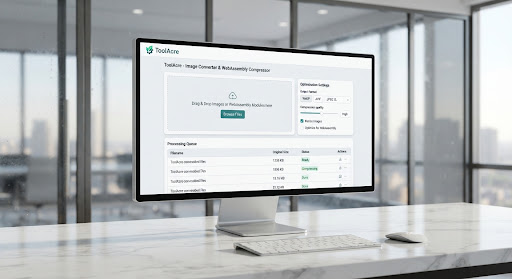
Set exact dimensions or a scale factor, with the aspect ratio locked until you unlock it
The tool loads here. It needs JavaScript, because the work happens on your device.
Your files and your privacy
Your images are never uploaded. Each file is read into this browser tab, resampled and
encoded by the browser’s own image pipeline inside a Web Worker, and handed back as a
download. The page’s Content-Security-Policy restricts connect-src to this origin, so the
browser itself would block an upload even if the code attempted one.
What this tool does
Change an image’s pixel dimensions, either by scaling it to a percentage or by entering a
width and a height. The resampling is done by your browser on your own device, and the
planned output size is shown before anything is written.
Resizing changes how many pixels the picture is made of. Scaling by percentage applies one
factor to both axes. Working in pixels lets you type a width or a height, and with the
aspect ratio locked the other axis is derived from the source proportions; supply both and
the image is fitted inside that box rather than stretched to fill it. Unlock the ratio and
the two numbers are used exactly as typed, which is how a deliberate distortion is made.
Whichever route you take, the picture is redrawn at the new size, and that redraw invents
no detail it did not already have.
How to use it
Choose one image, or a batch to resize with the same settings.
Choose By percentage for a simple scale, or By pixels to type a width and a height.
Leave Lock aspect ratio on and typing one dimension fills in the other; turn it off only
when you intend to change the shape.
Select Convert, then check the Output size column for each file before downloading.
Example use cases
Bringing a 4000-pixel-wide camera photograph down to the 1200 pixels a page template
actually displays.
Halving every picture in a folder with one percentage instead of typing dimensions
twenty times.
Fitting an image inside a maximum width and height without distorting it, by entering
both and leaving the ratio locked.
Supported input and output
Accepts
JPEG, PNG and WebP, up to 40 MB per file
GIF, decoded as a single still frame
Produces
PNG, JPEG or WebP at the dimensions the plan table reports
Whole-pixel dimensions only, never smaller than one pixel on either axis
A ZIP named converted-images.zip for a batch
What this tool will not do
Enlarging cannot add detail. Extra pixels are interpolated from the ones already there,
so an upscale looks softer rather than sharper.
Percentage mode accepts 1 to 400 and applies the same factor to both axes; it cannot
scale width and height differently.
With the ratio locked and both a width and a height supplied, the smaller of the two
scale factors wins so the shape is preserved, and one axis lands short of the number you
typed.
Every resize resamples the image and changes pixel values, even when the output format
is PNG. A resize is never lossless.
The final dimensions are clamped to a pixel budget for your device, and a warning names
the reduced size whenever that guard fires.
Rotation and flipping are available on the panel, but there is no crop rectangle:
resizing acts on the whole frame.
Common mistakes
Typing both a width and a height with the ratio locked and expecting both exactly; the
image is fitted inside the box and one axis comes out smaller.
Unlocking the ratio to force both numbers and not noticing the picture is now stretched,
because the plan table reports dimensions and says nothing about shape.
Resizing down, saving, then enlarging that saved file instead of the original. The
detail removed on the way down does not come back on the way up.
Assuming a resized PNG is unchanged because PNG is lossless. The encoder is lossless;
the resampling that happened before it is not.
Technical notes
Target dimensions are pure arithmetic performed before any pixel is touched: percentage
mode multiplies both axes, pixel mode either derives the missing axis from the source
ratio or, when both are given and the ratio is locked, takes the smaller of the two scale
factors so the result fits inside the requested box. Every value is rounded to a whole
pixel and never allowed below one, because a zero-sized canvas throws in some browsers and
produces a blank image in others. Rotation is applied after the resize and swaps the axes
at 90 and 270 degrees, and a device pixel budget is applied last, to the dimensions
actually allocated. The redraw itself is a single drawImage into an OffscreenCanvas with
imageSmoothingQuality set to high.
Frequently asked questions
Can I make an image larger without losing sharpness?
Not really. Upscaling interpolates between existing pixels, so the result is a larger
but softer version of the same information. There is no model here inventing detail, and
none is claimed.
Why is my output smaller than the width I typed?
Two things cause that. With the ratio locked and both axes supplied, the image is fitted
inside the box so its shape survives. Separately, a very large request is clamped to a
pixel budget for your device, and the panel names the dimensions it used instead.
Is a resize lossless if I output PNG?
No. PNG’s encoder stores exactly the pixels it is handed, but resampling already changed
those pixels. Only PNG output at the original dimensions leaves the pixel values
untouched.