Images & photos · Image Converter & Compressor
How canvas.toBlob converts PNG to WebP inside your browser
· How it works
image-formats canvas webp
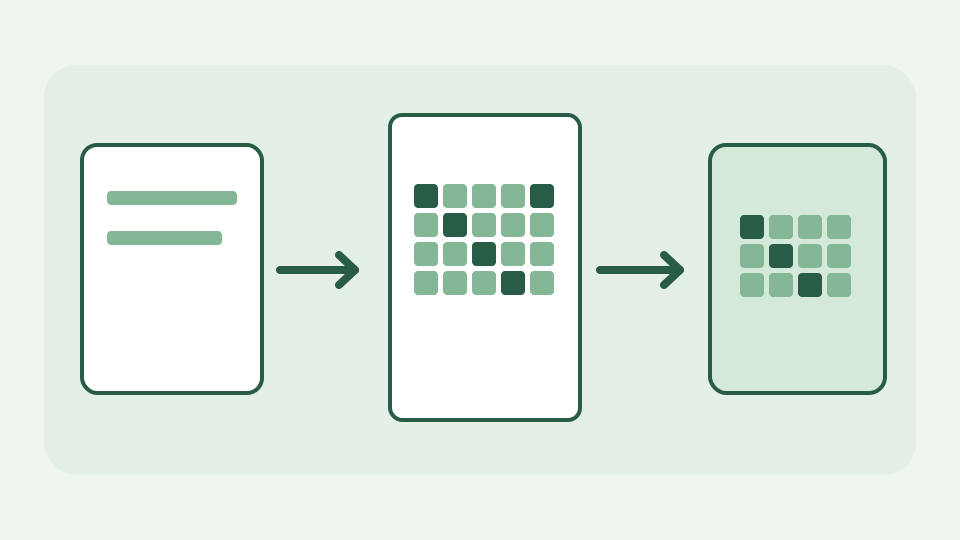
A browser image converter is a decoder, a bitmap and an encoder chained together, and the whole chain is built into the browser. This post follows one PNG through decode, canvas and toBlob to a WebP file, and notes what is lost on the way.
Where the WebP comes from when no server is involved — the concrete question behind a converter that works offline
The WebP does not come from a server-side conversion queue. Your browser already has image decoders, a drawable pixel surface and encoders; the ToolAcre converter connects them. That is why a PNG can be transformed in your tab after the site has loaded. “No upload” refers to the source image and conversion output, not to the website having no network activity at all.
Step one: decoding — how the browser turns PNG bytes into an RGBA bitmap, and why every format ends up as the same grid
First the PNG is decoded into an image bitmap. PNG compression, palette choices and colour metadata determine how its bytes become pixels, but the canvas works on the decoded raster, not on chunks of the PNG file. A 1600×900 screenshot yields 1.44 million pixel positions even if the file itself is much smaller. ToolAcre uses createImageBitmap and enforces a pixel budget; a large decoded image is a memory problem before it is an upload problem.
Step two: the canvas as a staging area — drawing the bitmap onto a canvas or OffscreenCanvas of matching dimensions
The bitmap is drawn into a canvas or OffscreenCanvas with the requested output dimensions. If those dimensions match the source and no crop is chosen, drawImage stages the pixels for encoding; if the dimensions change, the canvas resamples them and pixel values may change before WebP encoding starts. The same render routine serves the interactive preview and the worker path, preventing those two outputs from following unrelated algorithms.
Step three: toBlob with a MIME type and quality — how the encoder is selected, what the quality number controls, and why it is ignored for PNG
On an ordinary canvas, toBlob(callback, "image/webp", quality) asks the browser to encode WebP and calls back with a Blob. Where OffscreenCanvas is available, ToolAcre uses convertToBlob({type,quality}) for the same job. Quality controls a lossy encoder; it is not a promise of a specific byte count. PNG export is lossless and its quality parameter does not set a JPEG-like compression level. Always inspect the actual returned format, because encoder availability depends on the browser.
What the pipeline discards — metadata, colour profiles and 16-bit precision, and why that is a property of the technique rather than a bug
Re-encoding a decoded raster cannot preserve every fact in the original PNG container. Text chunks, camera or editor metadata, some colour profile details and source bit depth may not survive a canvas round-trip; 16-bit channels do not become a 16-bit WebP merely because the input carried them. WebP can keep transparency when the encoder supports it, whereas a JPEG export requires filling transparent areas. File size alone cannot show whether a conversion preserved fine lines or colours.
Worked example: a 1.8 MB PNG screenshot to WebP — following the file through the three steps and reading the result
Consider a 1.8 MB PNG screenshot with text, gradients and a transparent corner. Decode it, leave the dimensions unchanged, select WebP, export and compare the Blob size and MIME type to the original. The resulting size is measured, not predictable: clean screenshots may compress well, while noisy content may not. Zoom into small glyphs and the transparent corner before accepting the smaller file. If sharp UI text becomes fuzzy, keep PNG or adjust the encoder quality rather than claiming that WebP is always better.
What this does not cover — animated images, formats the browser cannot decode, and encoder settings the API does not expose
This pipeline does not promise animation retention, HEIC decoding on every device or full control of the WebP encoder’s subsampling and effort parameters. It also cannot recover detail already lost in a JPEG source by saving it as PNG or WebP. Repeated decode/re-encode cycles can accumulate loss. Keep an original, and use the supported input/output formats listed on the actual tool page rather than assuming every format your operating system knows is accepted here.
Takeaway: three steps, zero uploads — how the Image Converter & Compressor runs this pipeline on your device
The mechanism is decode → draw → encode, carried out with browser APIs and no image upload. ToolAcre exposes the target format and dimensions so you can tell whether you are merely changing the container or resizing the pixels too. Test one representative screenshot in the Image Converter & Compressor before processing a whole batch, then inspect the downloaded result at the size people will see.