Images & photos · Browser Image & Drawing Editor
How cropping works in a browser image editor: canvas and pixels
· How it works
image-editing canvas browser-processing
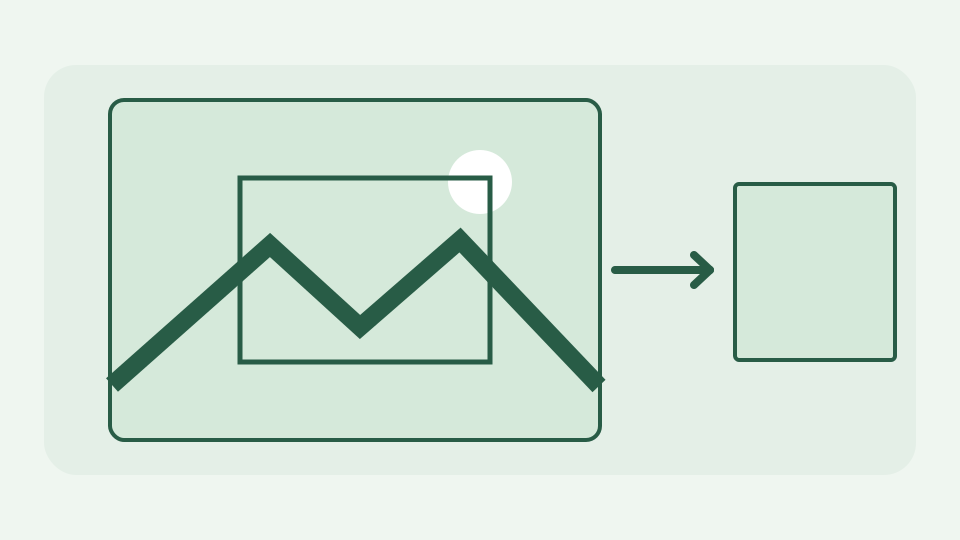
Cropping looks trivial, but a browser editor has to decode the file, copy a rectangle of pixels onto a canvas and encode a brand-new file. This post walks through each step and explains what changes and what stays identical.
Why a cropped photo is a new file, not a trimmed old one — the crop cannot simply delete bytes from a JPEG or PNG, so the editor decodes and re-encodes
A JPEG stores compressed image data, not one independently deletable byte span per visible row. Cutting bytes off its end would corrupt the file, not trim a photograph. A browser editor therefore decodes the picture, selects a rectangle and creates a new encoded file. The original remains on your disk. If you need reversible editing, keep the source and the selection coordinates: the exported crop does not contain the missing pixels.
Decoding the image into a bitmap — how the browser turns compressed bytes into a width × height grid of RGBA pixels before anything can be selected
The browser turns the compressed JPEG, PNG or WebP into a bitmap with width × height samples. A 4000×3000 image represents twelve million pixels before any crop, and several bytes per pixel can make its in-memory footprint much larger than the file on disk. ToolAcre checks image and canvas limits before allocating very large workspaces. What you see on screen may be zoomed to fit the viewport; the crop rectangle must still be mapped back to image coordinates before pixels are copied.
Selecting a rectangle: source and destination coordinates — how drawImage copies a chosen region onto a canvas of the target size, and what rounding to whole pixels means
A rectangle is an origin (x,y) plus width and height, measured in source pixels. ToolAcre constrains that rectangle to the document bounds and crops every visible layer, not just a screenshot of the composite preview. For each layer it creates a target canvas and calls drawImage with nine arguments: source canvas, source rectangle, destination origin and destination size. With equal source and destination dimensions, pixels are selected without a resizing step. Fractional pointer positions are rounded or clamped to representable canvas pixels.
Encoding the result back to a file — why the export step decides the format and quality, and why the crop itself is exact while the encoding may not be
Export is a separate operation from crop. The edited canvas can be encoded as PNG, JPEG or WebP depending on the options and browser support. PNG can preserve the pixels supplied to its lossless encoder; JPEG throws away some detail even if the rectangle was selected exactly, and transparency needs a deliberate background when using a format without alpha. The new file can also omit source metadata or colour information, so never describe it as a byte-for-byte subset of the original.
Worked example: cropping a 4000×3000 photo to a 1600×900 banner — following the pixel counts through decode, copy and export
For a blogger with a 4000×3000 photo, a centred 1600×900 banner starts at x=1200 and y=1050. drawImage copies columns 1200 through 2799 and rows 1050 through 1949 to a 1600×900 output: 1.44 million pixels instead of twelve million. If you instead ask the editor to shrink the full photograph to 1600×900, you change its aspect ratio and resample rather than making this crop. On a memory-limited phone the editor may reduce a very large input first, so check the displayed dimensions before repeating these coordinates.
What an exported crop cannot recover from the original picture
This is not lossless JPEG block cropping: the application draws pixels and exports a new container. Nor can the exported 1600×900 file recover the discarded margins after you close the original. A layered editing document is different again: cropping acts on the document layers, while export composites them into the downloaded image. For sensitive material, cropping a margin out is safer than merely drawing an opaque overlay, but inspect the exported pixels and keep the original private.
Takeaway: exact pixels, new container — why a browser crop is precise and how the Browser Image & Drawing Editor performs it without uploading the file
A browser crop is precise about which decoded pixels to keep, while the chosen encoder controls the downloaded file. The Browser Image & Drawing Editor performs both steps on your device: load a picture, select a rectangle, apply the crop and export. The network does not need the photo bytes for either step, but site assets and the disclosed AdSense/analytics requests should not be confused with a file upload in DevTools.