Images & photos · Social Image Resizer
Upscaling a Small Image for Social Media: What Resizing Cannot Recover
· How it works
image-resizing image-quality upscaling
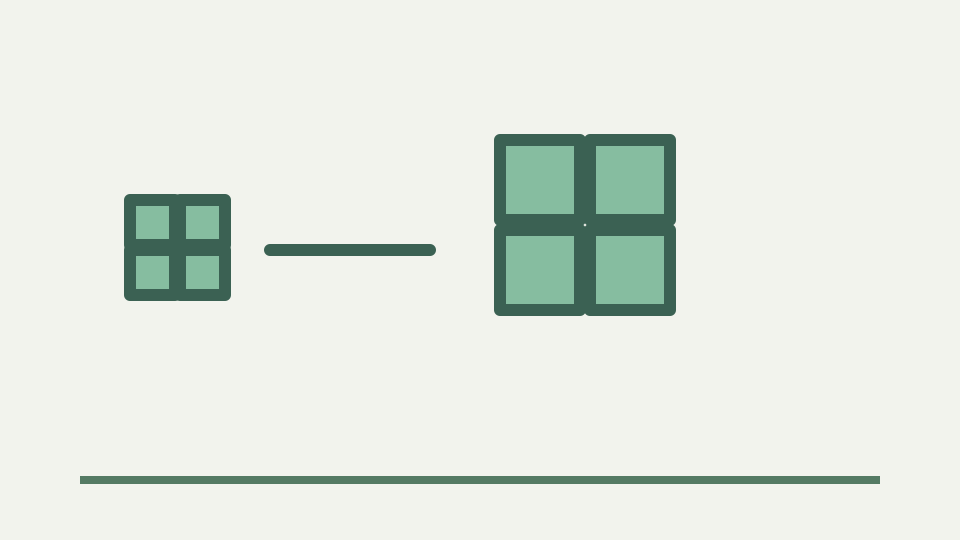
Enlarging an image asks the resampler to invent pixels between the ones you have, so it can smooth but cannot restore detail that was never captured. This post explains what happens when you upscale, how to judge the result, and the honest alternatives.
The logo that turned to mush — the concrete failure of stretching a small file to fill a large placement
A small logo can fill a large social frame only by assigning many output pixels to information represented by fewer source pixels. The resulting file has the requested width and height, but its extra samples are estimates. More pixels in the container do not recreate curves, texture or lettering that the source never recorded.
ToolAcre’s own limitation states that enlarging a small image cannot add detail and recommends the biggest original available. That warning applies even when the export succeeds perfectly. Successful geometry means the frame was filled or fitted; it does not certify that the enlarged subject is sharp enough for a campaign.
What interpolation does when enlarging — estimating in-between values, and why the result is smoother, not sharper
During enlargement, drawImage maps the source bitmap over a larger rectangle. With smoothing enabled, the canvas implementation calculates intermediate values so transitions are less blocky. The operation can soften stair-stepped edges, but every estimate is constrained by neighbouring source samples. A missing letter stroke has no hidden source value waiting to be recovered.
This distinction separates interpolation from reconstruction. Social Image Resizer performs browser canvas sampling, not a machine-learning model that generates plausible structure. The output remains an enlarged interpretation of the supplied pixels. If the original badge contains four pixels across a thin line, resizing cannot determine the designer’s exact intended curve.
This browser exposes smoothing controls, not named nearest, bilinear or bicubic choices
The outline contrasts nearest-neighbour, bilinear and bicubic methods, but this UI does not offer those named filters. The renderer turns smoothing on and requests high quality. Browser engines decide how to honour that hint, so the honest comparison is smoothing behavior in the tested browser, not a selectable algorithm matrix.
Blockiness and blur are still useful visual categories. Hard square pixels suggest insufficient smoothing or extreme magnification; soft boundaries reveal estimates spread across a larger area. Neither outcome is new detail. Record browser, source dimensions and output dimensions when comparing tools, because different hidden resamplers can make the same scale factor look different.
Judge enlargement at delivery size without a universal numeric threshold
There is no universal enlargement percentage at which an image becomes unacceptable. A simple icon, a textured photograph and a tiny wordmark fail differently. Judge at the size and viewing distance of the intended presentation, and look specifically at recognisable edges, letter counters, facial features and repeated patterns.
Inspect the result at normal display scale before examining it at one-to-one pixels. A file can look rough under magnification yet communicate correctly in a small card, while an apparently smooth preview can make brand lettering illegible. Acceptance should describe the intended use, not rely on an invented “safe” scale limit.
Alternatives that work — finding the original file, re-exporting from the design source, or choosing a smaller placement that fits the pixels you have
The best alternative is a larger original or a new export from the design source. A vector logo can be rendered directly at the final dimensions. If neither exists, contain mode can preserve the small asset’s entire shape while a solid or blurred background fills unused space, avoiding the need to stretch it until it covers the frame.
Another honest choice is a smaller placement within a designed canvas. Social Image Resizer is not a layout editor, but its contain mode demonstrates the principle: min-scale fits the full image and pins non-overflowing axes to the centre. Background becomes an intentional component instead of pretending that interpolation restored high-resolution artwork.
Worked example: compare cover with contain using observed output, not invented quality scores
Take a small square badge and target the current 1080×1080 preset. First use cover and inspect the enlarged edge and text. Then switch to contain with a deliberate background and compare whether the badge remains credible at a smaller visible scale. Save both only as tests until the communication owner approves one.
The meaningful observations are source dimensions, target dimensions, fit mode and visible defects. Do not attach a fabricated quality score. If the contained version communicates better, the result proves that framing can outperform enlargement for this asset. If neither works, the evidence supports returning to the original designer rather than tuning quality blindly.
What this does not cover — machine-learning upscalers, which generate plausible detail rather than recovering it, and are outside this tool
Machine-learning upscalers sit outside this tool. They can generate plausible texture or edges, but generated detail is not recovered evidence from the source. That difference can matter for products, documents and historical photographs, where an invented mark may alter meaning even if it looks convincing.
ToolAcre also does not vectorise logos, sharpen after scaling or rebuild type. Its controls are crop, fit, zoom, position, background, output format and quality. Those limits are useful because they keep the result explainable: the browser sampled supplied pixels and encoded them, without claiming semantic restoration.
Takeaway: start from the largest original you can find — the Social Image Resizer will crop and scale it in the browser, but it will not invent detail
Start from the largest trustworthy original, not from a thumbnail copied out of a feed. If enlargement remains necessary, inspect it at delivery size and keep expectations tied to what the source contains. Smoothing can change the appearance of edges; it cannot recover information that was never captured or has already been discarded.
Social Image Resizer gives two practical choices: fill the frame and accept overflow cropping, or contain the image and use a background. Compare them before stretching a fragile asset. Sometimes the most professional resize is the one that refuses to make a small logo pretend it was a large original.