Images & photos · Image Metadata Privacy Tool
Why Photos Rotate After Stripping EXIF: The Orientation Tag Explained
· How it works
exif image-privacy image-editing
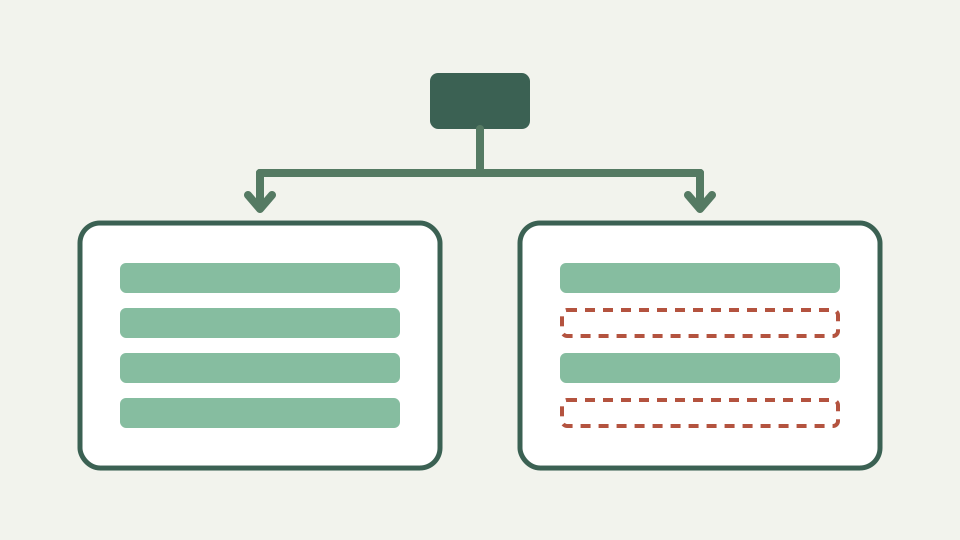
Cameras often save the sensor's pixels unrotated and record how to display them in a single EXIF tag, so removing that tag can make some viewers show the photo sideways. This post explains the eight orientation values and how to avoid the surprise.
The portrait that turned sideways — why a photo can look right everywhere until its metadata is removed
A portrait can look upright in one viewer and sideways after metadata removal because the stored pixels and the display instruction are separate. ToolAcre lists Orientation when the tag is readable, but its cleaner removes the complete EXIF block. If the original relied on that instruction, a later viewer receives only the unrotated pixel arrangement.
How cameras record orientation — the sensor stores pixels one way, and the Orientation tag (values 1 to 8) tells the viewer how to turn or mirror them
Camera software may store sensor pixels in their native arrangement and use Orientation to tell a viewer how to rotate or mirror them. The repository tag dictionary identifies Orientation as the field controlling viewer rotation. The implementation does not interpret that field into a transformed preview; it reports the value so a person can notice the dependency before cleaning.
Who honours the tag and who ignores it — modern browsers and phone galleries apply it; some older software, web pipelines and canvases historically did not
Viewer behaviour is outside the container stripper, so the tool does not promise that every application honours the tag consistently. The reliable observation is narrower: before cleaning, some software can use Orientation; after the EXIF block is removed, that instruction is unavailable. Checking the final file in its real destination is therefore part of the workflow.
What stripping changes — the tag disappears, so any viewer that relied on it now shows the stored pixel order
Removal is all or nothing because location, timestamps, camera fields and Orientation share the EXIF block. There is no switch that keeps Orientation while dropping GPS. The cleaner copies compressed image data unchanged, so it cannot rotate pixels to compensate; doing so would require decoding and re-encoding through an image-editing path this tool deliberately avoids.
Two safe orders of operations — rotate the pixels first in an editor and save, then strip; or strip, check the output, and rotate if needed
Two safe orders follow from that boundary. If display orientation matters, first use an editor that rotates the actual pixels and exports a file whose visible orientation no longer depends on EXIF, then inspect and clean that export. If preserving the original technical metadata matters more, keep the master private and create a separately flattened sharing derivative before stripping.
Worked example: checking a phone photo — reading the Orientation value in the inspection report, predicting the result, and confirming the output looks right
With a phone portrait, open View EXIF data and look for Orientation in the technical fields. If it exists, compare the visible image after an editor has normalised the pixels, then clean that derivative and verify it in the destination viewer. Do not treat a visually upright preview before stripping as proof that the pixel array itself is upright.
What this does not cover — rotating the pixels themselves, which is an editing job; the tool page lists what the tool will not do
This tool does not rotate pixels, choose a transform from the Orientation value or preview all mirrored cases. It also rejects HEIC, TIFF, RAW and other containers where orientation may be represented differently. Its guarantee is about supported metadata blocks and unchanged compressed image data, not display equivalence after a rendering instruction is removed.
Takeaway: know the tag before you remove it — inspect first with the Image Metadata Privacy Tool and use the report to decide whether the pixels need rotating beforehand
Know the tag before removing it. Inspection tells you whether Orientation is present; an image editor can make the pixels self-sufficient; metadata removal can then drop the private block without unexpectedly becoming the first operation that exposes the native orientation. Keep the original so a mistaken workflow is reversible.