Developer tools · Base64 encoder & decoder
Decoding Base64 tokens online: why the tool should run in your browser
· Why it matters
base64 privacy
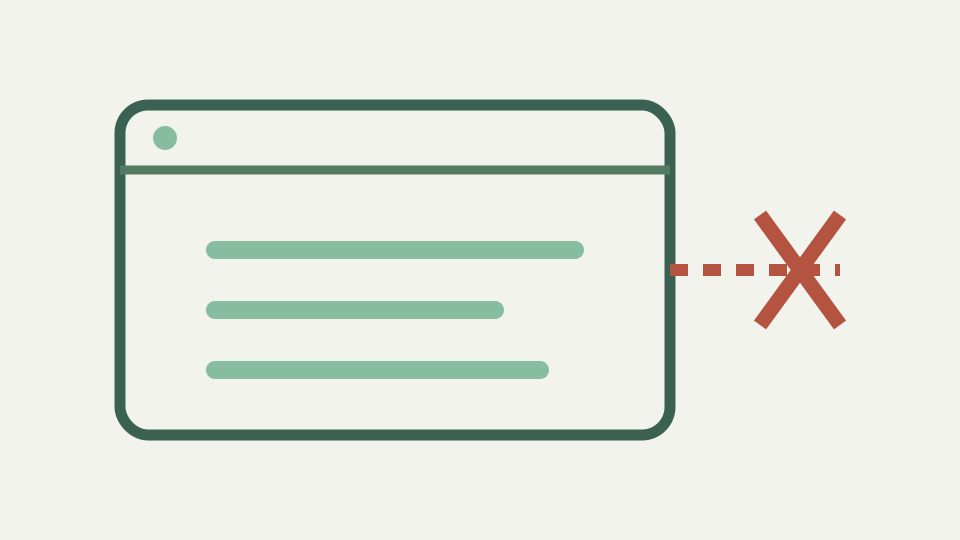
Many online decoders send your input to a server, which means every token, credential and payload you paste is disclosed. This post explains what leaks, how to verify a tool stays local and why ToolAcre's decoder works that way.
The API key that went through a stranger's server — what pasting a token into a form-posting decoder actually transmits
An engineer needs to inspect a Base64-encoded JWT or API response to debug a system. They open their favorite search engine, find an online decoder tool, and paste the token into its input field. The tool displays the decoded payload instantly and the engineer gets back to work. What they did not see is what traveled to the server: the entire token, with every credential, claim and personal detail it contains. That request was logged, stored in server access logs, possibly cached by proxies and definitely visible to anyone monitoring network traffic.
The casual choice to use an online decoder has disclosed a production token to a service they do not control. This post explains what leaks when you paste into a remote decoder, how to verify that a tool stays local, and why ToolAcre decoder works in the browser so your secrets never travel to a server. A JWT (JSON Web Token) contains encoded claims separated by dots. When decoded the middle section often reveals user IDs, email addresses, roles, issue times, and sometimes API keys or session identifiers.
What a Base64 payload typically contains — credentials, JWT claims, session data and personal information
A Base64 payload in an API response might contain a file upload, a signature, or a partial encryption key. All of these are sensitive data that should not leave your device. Yet when a developer copies such a value from a terminal or an HTTP response and pastes it into an online decoder to read the contents quickly, that value goes straight to the remote server. If the decoder processes many users, one server could be accumulating a database of thousands of tokens and payloads.
Even if the server deletes them after processing, they are logged, visible in transit and potentially intercepted or stored by other services. The distinction between server-round-trip decoders and in-tab decoders is absolute. A form on a web page that requires a POST or GET request to decode your input means your data travels to a remote server. Even if the server is honest and deletes the data immediately, the traffic is exposed. Proxies, load balancers, monitoring systems and TLS termination points all see the request.
Two architectures: server round trip versus in-tab decoding — where the bytes go in each and who can log them
If the server is not honest or if it is compromised, your token is now stored in a database belonging to someone else. An in-tab decoder means no request is sent at all. The text you type, the Base64 string you paste and the decoded result all stay in the browser on your device. No server is contacted, no third party sees the data and the browser own JavaScript does the conversion. Checking for yourself takes one minute and requires only the browser built-in Network panel.
Open the Base64 encoder & decoder in a new tab, open the developer console (F12 in most browsers) and click the Network tab. Make sure the list is empty or click the clear button. Now paste a sample token or Base64 string into the decoder and click Decode. Watch the Network panel carefully. If it stays completely empty and no new requests appear, the decoding happened locally in the browser. If a request to the server appears, that request carried your data.
How to check for yourself in the network panel — watching for requests while you paste, and what a quiet panel proves
Alternatively, open the page source HTML or JavaScript (right-click, View Page Source) and search for where the form posts or fetches. If it sends to a remote endpoint that is not the same domain the page loaded from, your input is leaving the device. A quick Network panel check proves whether a decoder is local or remote. A strictly local tool makes no requests when you decode something. No GET request with your input as a parameter, no POST with form data, no fetch call to an API.
The panel stays completely empty during the operation. This is not hard to fake; a clever tool could decode locally and also send your data to a tracking server. That is why checking the Content Security Policy matters too. A strict Content Security Policy, visible in the response headers tab of the Network panel, rules out many types of external calls. A policy that forbids external scripts, fonts and images and does not allow form posts to arbitrary endpoints limits what a malicious or compromised page can do.
Why no analytics and no third-party scripts matter too — how a strict Content Security Policy rules out silent exfiltration
CSP is not an absolute guarantee but combined with a Network check it is strong evidence the tool is doing what it claims. For a full verification, decode a sample token while watching three things at once: the Network panel, the page source for external requests and the CSP headers.
A page that makes no requests, includes no third-party JavaScript and declares a strict CSP that forbids further loads is much harder to compromise than one that allows everything. Base64 encoder & decoder uses this approach: operations run in a Web Worker on your device, the site has a strict CSP that forbids external code and the page makes no network requests when you decode.
Worked example: decoding a sample token with the network panel open — no request, no storage, nothing to delete afterwards
You can audit this yourself in the Network panel, the browser console and the page source, then trust your own observation rather than the tool privacy promise. The broader context matters because not all token leaks come from malicious decoders. A browser extension that monitors all traffic and logs requests can see what you paste into an honest local tool if the extension is compromised or malicious. A clipboard manager that stores every copy and paste operation for convenience can retain your tokens.
Shoulder-surfing, where someone watches your screen while you work, captures the decoded value directly. These are outside any web tool control. The decoder itself cannot protect against extension-level access or physical observation. But it can and must eliminate the server-round-trip exposure. If you are going to paste a real production token into anything, that tool must run locally. The decision to use a local versus remote decoder is a security choice that compounds over time. Using a remote decoder once means one token is exposed and one server has the data.
What this does not cover — browser extensions, clipboard managers and shoulder-surfing, which are outside any web tool's control
Using a remote decoder regularly means hundreds of tokens flow through servers you do not control. A developer who makes a habit of pasting sensitive values into online tools gradually trains themselves that it is acceptable, normalizing the exposure. Switching to a local decoder removes the exposure entirely at the tool level. It does not solve other problems like tokens appearing in logs or chat history, but it eliminates one controllable source of leakage. Verifying a tool stays local is a matter of checking observables, not trusting claims.
Network panel traffic, page source code, HTTP headers and browser console errors all provide evidence. When a tool claims to be local but you do not have a way to verify it, the skepticism is warranted. ToolAcre Base64 encoder & decoder runs entirely in your browser and makes no requests when you decode. You can open the Network tab, paste a real token, decode it and see no outgoing request. The decoded value appears in your browser only. It is not stored on any server, not sent to analytics, not logged anywhere but in your browser cache if you visit again and the page is cached.
Takeaway: decode where the data already is — how the Base64 encoder & decoder runs entirely in your browser, with no account and no upload
Decode locally, and your token stays yours. The practical advice is straightforward. When you need to decode a Base64 token or JWT, use a tool that runs locally in your browser. Verify it makes no requests by opening the Network panel and checking while you decode. If you find an online tool that posts to a server, stop using it. Never paste production tokens, API keys or any sensitive data into a tool where the data travels to a remote server. Store short-lived tokens and rotate long-lived ones regularly so the window of exposure is minimized.
For ToolAcre Base64 encoder & decoder, the tokens and credentials you paste stay in your tab, and you can confirm it yourself with one quick look at the Network panel.