Documents · PDF Toolkit
Splitting a PDF by Page Range in the Browser: How It Works
· How it works
pdf page-ranges browser-processing
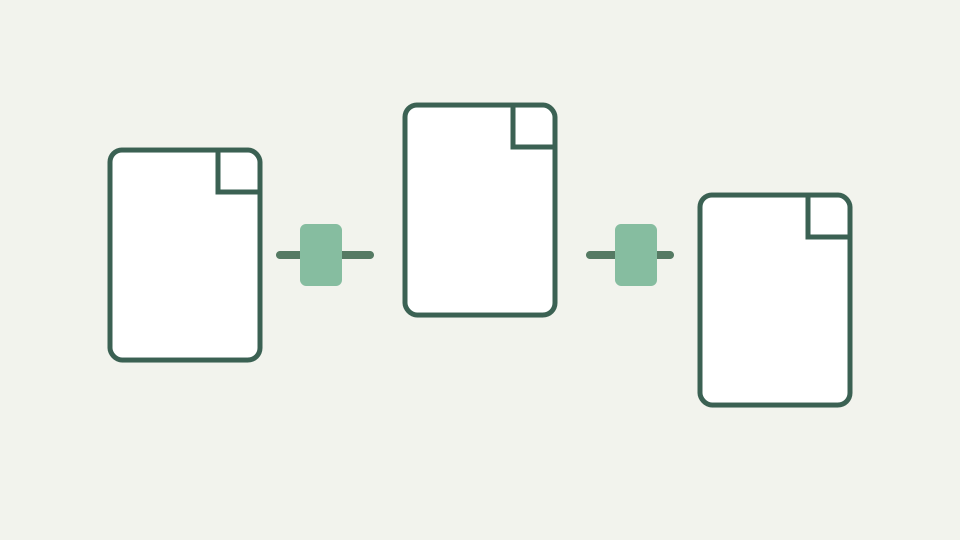
A page range like 3-7 is a small instruction with a lot of consequences. This post explains how a browser tool turns that range into a new, self-contained PDF, and why the output is often bigger or smaller than you expect.
One long scan, five exhibits — the common situation where a single PDF has to become several files without leaving your machine
A scanned agreement often arrives as one long file even when its exhibits must travel to different reviewers. The splitter accepts one PDF up to 50 MB, reads it into the current tab, and lets each comma-separated range become a separate result without sending the contract to an upload service.
That workflow suits a paralegal who needs pages 1-18 as the main agreement, 19-25 as a schedule, and 26-40 as signatures. The source remains untouched. The operation creates fresh documents from selected pages, so checking every output matters before the original scan is archived or distributed.
How page ranges are interpreted — physical page positions, inclusive ranges, and why the first page is page 1 even when it is labelled 'i'
Ranges use physical positions and are one-based: the first page in the file is page 1 even if its printed footer says “i” or carries no number. A plain number selects one page, both ends of `2-6` are included, `8-` reaches the end, and `-3` starts at page 1.
The parser rejects malformed tokens, reversed spans such as `7-2`, and positions beyond the actual page count. Commas define outputs rather than merely joining selections. Thus `1-3, 4-6` produces two files, while `1-6` produces one; overlapping ranges deliberately copy shared pages into more than one part.
Extracting a subset of the page tree — how the tool builds a new document containing only the pages you asked for
Before rewriting anything, the range parser converts each requested group into zero-based page indices. The worker then creates a new PDF for that group, copies the named pages with pdf-lib, and serializes the result. Unnamed pages are not redistributed elsewhere; a gap is a valid instruction to leave material out.
Page copying preserves visible page content, dimensions, existing rotation, selectable text, and embedded imagery used by those pages. It does not reconstruct bookmarks, document-level attachments, or form definitions. Each part is a new file, and an input digital signature no longer authenticates those newly written bytes.
Why output size varies when each range becomes a fresh document
The workbook attributes size differences specifically to duplicated shared resources, but the implementation does not expose that accounting. The defensible observation is that every range is saved as a fresh PDF and output size need not divide in proportion to page count. Scanned pages and vector pages carry very different amounts of data.
Multiple parts are placed in a ZIP with stored, uncompressed entries because PDFs already contain compressed streams. The archive simplifies delivery; it is not a compression pass. Expect the combined entries to remain near their own saved sizes, and do not promise that splitting will make a large document materially smaller.
Split versus extract — dividing a file into parts compared with pulling selected pages into one new file, and when each fits
Split and extract answer different delivery questions. Split treats each comma-separated group as a separate document. Extract accepts a page list and writes all named pages into one new PDF. Use split for several exhibits or chapters; use extract when a recipient should receive one concise packet assembled from scattered positions.
The distinction also controls download shape. One split range returns a PDF with a `-part-1` suffix. Two or more ranges return a `-split.zip` archive. Extract always returns one `-pages.pdf`. Choosing the operation deliberately prevents an unexpected bundle just before a filing deadline.
Worked example — splitting a forty-page scanned agreement into signature pages, schedules and the main body
For a forty-page agreement, a practical specification might be `1-24, 25-34, 35-40`. The tool validates all three groups against forty pages, creates three new PDFs in that written order, and packages them in one ZIP. Part numbers follow range order, not the original page numbers printed on the sheets.
Open every part after download. Confirm the main body ends where intended, schedules begin with their headings, and signature pages retain the correct orientation. If printed labels differ from physical positions, determine the offset before running the split; the tool operates on the page tree order it can actually read.
What this does not cover — splitting by bookmark or by detected content, which requires structure many scanned files do not have
This splitter does not divide at bookmarks, headings, detected text, or visual separators. Those requests require dependable structure or content recognition, while many source scans contain only page images. It also refuses encrypted or password-protected PDFs rather than bypassing access controls; unlock an authorized copy in its originating application first.
There is no OCR, content classification, or server-side history. The accepted maximum is 50 MB for the input PDF, with practical work additionally bounded by device memory. Complex archival or accessibility requirements should be validated in specialist software after the page-level selection is complete.
A split rebuilds each selected range locally and omits document-level structures
A split is a sequence of controlled rebuilds: parse inclusive ranges, copy each group into a fresh document, serialize it, and package several outputs when necessary. That explains why page quality remains intact while document-level navigation and signatures do not. It also explains why commas have structural consequences.
The PDF Toolkit performs those transformations in a Web Worker on the device. Its code makes no request carrying document bytes, although consented analytics may load on the canonical production host and excludes filenames and contents from ToolAcre events. Clear files afterward to release buffers and terminate the worker. Keep the ZIP until every range has been opened, because the tab retains no recovery copy of an output that was never downloaded. Verify filenames too.