Images & photos · Browser Image & Drawing Editor
Why blurring text in a screenshot is not redaction (and what is)
· Why it matters
image-privacy redaction image-editing
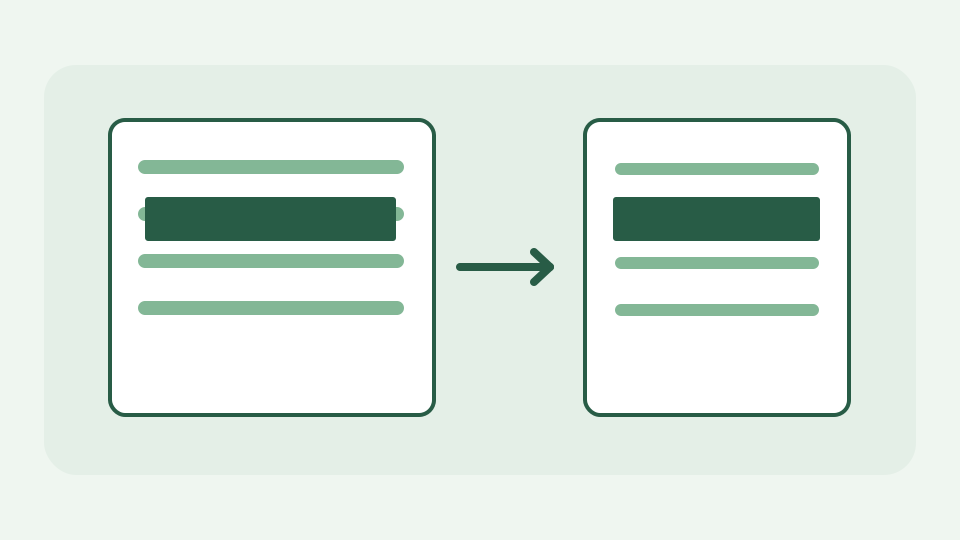
Blur and pixelation feel like hiding, but they leave structured information behind that can sometimes be reversed. This post explains why an opaque shape is the only safe redaction for a raster image and how to apply one.
The blurred email address that was still readable — the common mistake and why it keeps happening
An HR coordinator blurs an email address before sharing a support screenshot. At normal zoom it appears unreadable, but a blur is an average of the original pixels. The shape of characters, their length and their position can remain visible; a person with candidate addresses can sometimes compare blurred patterns. The problem is not that every blur is mathematically reversible, but that it was designed for appearance, not for removing underlying information.
What blur and pixelation actually keep — averaged colours that preserve position, length and often enough shape to reconstruct text
Pixelation divides an image into blocks and replaces groups of pixels with representative colours. Blur weights nearby pixels and spreads their influence. Both operations retain information about the original content and can leave contextual clues, including the number of characters and surrounding words. Reducing opacity on a highlight is worse: the original text is still partly visible by design. A genuinely safe screenshot share should not rely on an observer being unable to zoom or adjust contrast.
Why opaque is different — a solid filled shape replaces the pixels entirely, leaving nothing to reverse
A solid, fully opaque rectangle replaces the covered pixels in the exported raster with one chosen colour. In the flattened result there is no original character shape inside that rectangle to sharpen. Make it larger than the text, including shadows, descenders and antialiasing around its edges; do not place a border around a blur and call it redaction. Another alternative is to crop the sensitive region completely out if the remaining screenshot still explains the issue.
Redaction has to survive export — why the shape must be flattened into the image, and why hiding a layer or lowering opacity is not enough
In a layered editor the original pixels may remain underneath a drawn shape until the output is flattened or raster-encoded. Sharing a project file with its layers would preserve the secret. ToolAcre composites visible layers when exporting PNG or JPEG; you should open the downloaded image independently and confirm that every target area is opaque at 100% zoom. Save the original privately for your records, not as an accidental attachment beside the cleaned copy.
Worked example: hiding a name and an account number on a screenshot — drawing an opaque filled shape over each, then checking the export at 100 percent
Use a disposable screenshot containing a name near the top and an account number near the bottom. In Browser Image & Drawing Editor, draw one opaque filled rectangle over each, extending past every character edge. Export a PNG copy, open it in a separate viewer, zoom in and check both rectangles and their margins. Also inspect filenames, thumbnails or neighbouring tabs before sharing. A demonstration should use fake information so an unsuccessful test cannot itself disclose a real employee’s details.
What this does not cover — metadata, text that appears elsewhere in the image, and documents where the text layer needs separate redaction
Covering pixels does not remove EXIF metadata, a duplicate line of the same information elsewhere in the image or text that remains in a PDF’s selectable text layer. A PDF page with a black annotation over text needs a PDF-specific redaction workflow, not just a screenshot export. Images can also reveal location through visible street signs or a reflection; think about what the remaining pixels say. The image editor is not a policy engine that decides which names are sensitive.
Takeaway: cover, do not soften — how the drawing tools in the Browser Image & Drawing Editor let you paint a solid shape over anything sensitive
Cover, do not soften. The Browser Image & Drawing Editor provides solid shapes and an export that flattens the visible result on your device. The responsibility remains with the person sharing it: inspect the exact exported file, not merely the editing preview, and use a document redactor when the source has layers or selectable text outside a raster screenshot.