Documents · Freelance Invoice Tool
How Country Settings Change an Invoice's Labels and Currency Formatting
· How it works
invoice validation pdf
Choosing a country on an invoice generator is not a cosmetic step: it decides how the tax line is named, which currency is used and where the decimal point goes. This post explains what changes and the browser mechanics that make it work.
1.500,00 EUR or EUR 1,500.00 — the small formatting differences that make a client question whether the amount is right
An amount can look unfamiliar even when its value is unchanged. Grouping marks, decimal marks, currency symbols and codes all affect a quick reading, so a client may pause at a format that resembles a different magnitude. Clear codes and consistent decimals matter more than visual familiarity alone.
What a country setting controls — the document's labels, such as how the tax line is named, and the currency, with the exact set documented on the tool page
The country preset supplies field labels for business and tax identifiers, a tax label, a payment label, a default currency and a suggested rate. The repository is explicit that these are labels and defaults only: selecting a country does not apply that jurisdiction’s tax rules or validate an identifier.
How the tool formats numbers with Intl.NumberFormat and a fixed English locale
The outline suggests formatting follows the browser locale, but this tool deliberately fixes Intl.NumberFormat to the English locale for stable screen, print and PDF strings. Currency metadata still controls the code and minor-unit count; the visitor’s locale does not swap commas and points in this export path.
Labels versus language — why a country's conventional invoice labels are not the same as translating the whole document
Country labels are not document translation. Choosing a preset can change a field from a generic business identifier to a familiar local label, yet the PDF headings and surrounding interface remain the language implemented by the app. A local label should not be read as a fully localised invoice.
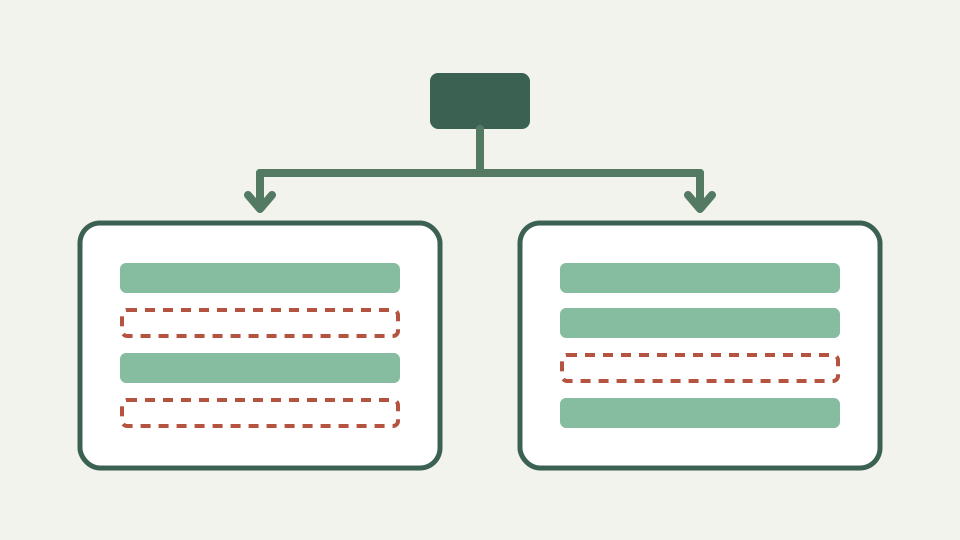
Worked example — the same three billed items exported with two different country settings, compared side by side
Compare one document under two presets and inspect only changes the source promises: identifier labels, tax label, payment label, suggested rate and starting currency. Because changing country resets tax confirmation, the second document should not carry tax until you review and confirm the new setting.
What this does not cover — tax rates and rules, which the label does not determine and which you must confirm for your situation
A preset does not establish registration status, the correct rate, cross-border treatment, mandatory wording or e-invoicing compliance. The limitations page also rules out multiple tax rates, reverse charge and currency conversion. Confirm those questions with current official guidance for your circumstances.
Takeaway — pick the country that matches your registration, and the Freelance Invoice Tool applies the labels and currency conventions for it
Pick the preset that matches the seller’s real registration context, then treat every default as a prompt to verify rather than an answer about law. The Freelance Invoice Tool gives the document locally recognisable labels and a currency starting point while leaving compliance decisions with you.