Images & photos · Image Metadata Privacy Tool
Segment Removal vs Canvas Re-Encode: Two Ways to Strip Photo Metadata
· How it works
exif image-privacy file-formats
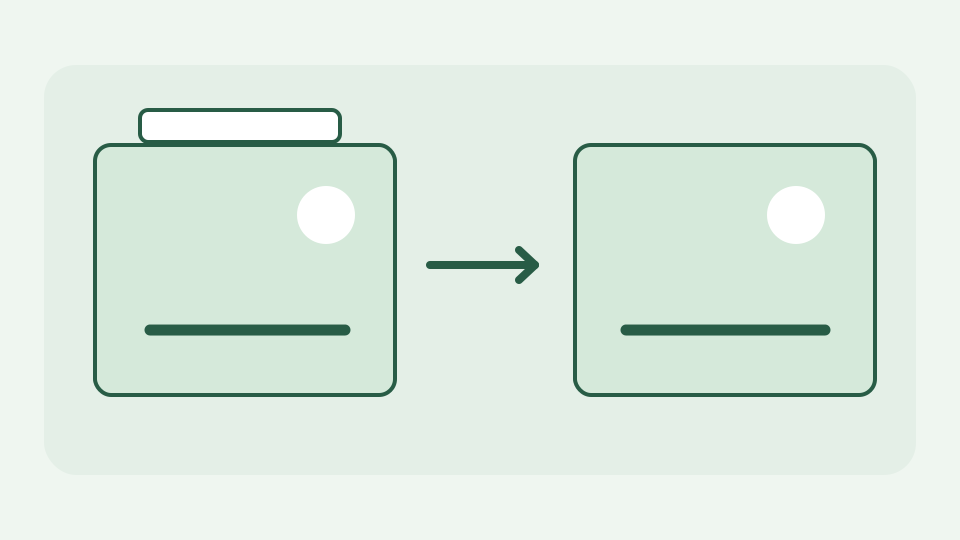
Many online strippers simply redraw your photo on a canvas and save it again, which discards metadata but also re-compresses the pixels. This post explains the alternative: removing the metadata segments and copying the compressed image data through untouched.
The 'cleaned' photo that lost quality — why a metadata-stripped JPEG should keep its image data byte-identical, and how to tell when it has not
A “cleaned” JPEG that suddenly looks softer may have been decoded and saved with new compression settings. Removing hidden tags does not require recompressing its image stream: EXIF and other records occupy identifiable containers outside the compressed picture data. If the image data is kept byte-for-byte, decoded pixels should stay the same. This distinction matters to a photographer who worked hard to preserve small textures and colour in the original export.
Method one: redraw on a canvas and export — what the browser does when it decodes, draws and re-encodes, and why every pass costs quality
One common method loads the image into a browser canvas and saves a fresh JPEG, PNG or WebP. Because the canvas holds pixels rather than original file segments, most old metadata disappears. The trade-off is real: a fresh JPEG encode quantises the image again, and a fresh PNG/WebP file may use a different colour profile or encoding choice. The browser process can be local while still changing image quality; “runs in your browser” is not the same as “lossless.”
Side effects of re-encoding — lost ICC profiles, possibly changed chroma subsampling, altered orientation, and PNG transparency or WebP lossless data handled differently
Re-encoding can drop ICC colour information, change subsampling or flatten alpha depending on the chosen output. A camera orientation tag is particularly awkward: if the decoder displays rotated pixels and the tag is removed, the new file should preserve that visible orientation explicitly; if not, a viewer may display it differently. PNG and lossless WebP have different container rules from JPEG, so a one-size-fits-all redraw may alter more than the photographer expected. Test the output in the viewer where it will actually be used.
Method two: remove the segments, keep the scan — copying the frame headers, quantisation tables and entropy-coded data, and dropping only the APP1, APP13 and XMP blocks
ToolAcre uses a byte-level alternative. For JPEG it walks markers, classifies metadata-bearing APP1 Exif/XMP, APP13 Photoshop/IPTC, COM comments and other relevant segments, then writes a new file omitting those segments. Structural and image-bearing segments, quantisation tables and the entropy-coded scan are copied rather than sent through an image encoder. The parser does not promise to understand proprietary MakerNote fields: it removes their containing EXIF block instead of inventing values for them.
Doing the same job in PNG and WebP — dropping ancillary metadata chunks while leaving the compressed image chunks exactly as they were
PNG stores metadata in labelled chunks such as eXIf, tEXt, zTXt and iTXt. WebP uses RIFF chunks such as EXIF and XMP, with presence bits in VP8X that must be updated when a chunk is removed. The tool applies format-specific rules and leaves image-bearing data in place. It intentionally retains information required for correct rendering, such as certain colour-related blocks; “strip metadata” therefore means removing its documented categories, not promising every non-pixel byte has disappeared.
Worked example: comparing the two outputs — file size, a pixel-difference check, and re-inspecting both files to confirm the metadata is gone
Make two copies of a sample JPEG with GPS coordinates. Strip the first with a canvas redraw, the second with ToolAcre’s segment remover, then inspect the source and both outputs. The byte-level copy should keep its compressed image stream and may differ mostly by the removed segment sizes; a redraw may be smaller for completely different reasons. Decode both and compare pixel values if you need to assess quality. Finally re-open each in a metadata inspector: file-size change alone does not prove a GPS field is gone.
What this does not cover — anything inside the pixel data itself, such as visible watermarks or steganography, is untouched by either method
Neither technique removes a house number visible in the photograph, text burned into pixels, a reflected face or information intentionally hidden inside image data. A metadata inspector can report only the formats and directories it understands; do not assume a “no fields found” panel proves the image contains no identifying content. This tool accepts JPEG, PNG and WebP, not RAW, HEIC or every possible container. Review what you share in the image itself as well as in its tags.
Takeaway: strip the container, not the picture — the Image Metadata Privacy Tool removes metadata without re-compressing, so the image data is not degraded
Strip the container’s designated metadata rather than recompressing a picture merely to discard a few tags. The Image Metadata Privacy Tool creates a new downloadable copy locally and names the blocks it removed or kept. Compare a sample before and after and inspect the exported file independently; that workflow protects both image quality and your expectation about what private information was actually removed.