Images & photos · Social Image Resizer
Aspect Ratio Maths: How to Crop Any Photo to 1:1, 4:5, 9:16 or 16:9
· How it works
image-resizing aspect-ratio canvas
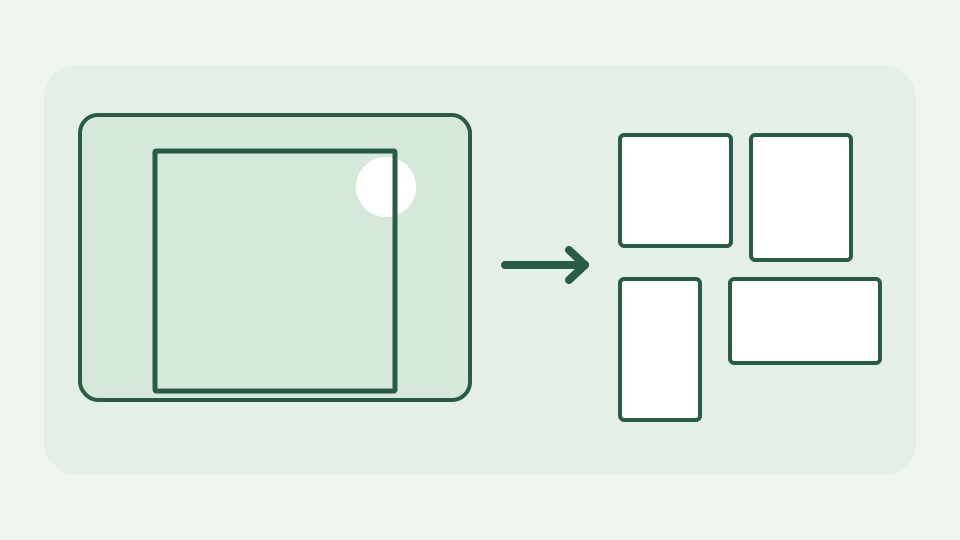
Cropping to a ratio is arithmetic: compare the photo's ratio with the target, work out which dimension has to shrink, then choose where the crop sits. This post gives the formula, a worked example and the rounding traps.
The photo that never fits — why a 3:2 camera shot cannot become a square or a 9:16 story without losing something
A 6000×4000 camera photograph is 3:2: its width is one-and-a-half times its height. A square product card, a 4:5 feed portrait and a 9:16 story do not have that shape. Resizing without cropping either distorts the subject or adds borders. Cropping makes an editorial choice about which part remains. Keep the original and choose that part deliberately, especially when a label, face or logo sits close to an edge.
Ratio as a single number — dividing width by height so 4:5 becomes 0.8 and 16:9 becomes about 1.78, and comparing source with target
Represent an aspect ratio as width divided by height. For the source, 6000/4000 = 1.5; for 4:5 it is 4/5 = 0.8; for 16:9 it is about 1.7778. Comparing these numbers immediately tells you whether you have excess width or height relative to the target. The ratio is independent of the requested export pixels: 800×1000 and 1600×2000 are both 4:5, but the latter has four times as many pixels.
Which side to cut — if the source is wider than the target, crop width; if taller, crop height; the formula for the new dimension
If source width/source height exceeds the target ratio r, preserve full height and set crop width = height × r; cut horizontal sides. If the source is narrower, preserve width and set crop height = width/r; cut top and bottom. These formulas choose the largest crop that fits inside the existing image without stretching. ToolAcre computes a cover frame, clamps the offset and calls drawImage to map that image into a destination canvas; cropping and resizing happen together when needed.
Choosing the offset — centred crops versus shifting toward the subject, expressed as a fraction of the cut-away distance
For a centred crop, divide the distance removed from each side by two. A 6000px-wide photograph cropped to 3200px has 2800px excess width, so x=1400 centres it. To protect a subject near the left, use a smaller x; x must stay between zero and the full cut-away distance. Thinking of the offset as a fraction from 0 (left/top) to 1 (right/bottom) helps reuse the same framing idea across multiple export sizes.
Worked example: one 6000×4000 photo to four ratios — the crop rectangle for 1:1, 4:5, 9:16 and 16:9, step by step
From 6000×4000, a centred 1:1 crop is 4000×4000 at x=1000. A 4:5 crop is 3200×4000 at x=1400. A 9:16 crop is approximately 2250×4000 at x=1875. A 16:9 crop instead uses the whole 6000px width and takes 3375px in height, with a mathematical centre at source y=312.5. Export sizes can then scale each cropped rectangle. None of these operations conjures missing content: the excluded sides are absent from the new image.
Rounding, fractional offsets and the integer-sized export canvas
Export canvases have integer pixel dimensions, but drawImage can position a scaled source at fractional coordinates. In the 16:9 example 625 source rows are excluded, giving a theoretical centred start of y=312.5. A tool that cuts only whole source rows must choose 312 or 313; ToolAcre instead centres a scaled cover frame and lets canvas sample its fractional edge. The export canvas has the chosen aspect ratio, although border pixels may be interpolated. Repeatedly editing an already-exported image compounds resampling or lossy encoding; begin each placement from the master.
What this does not cover — the platforms' current pixel dimensions, which change; check the platform's own guidance for the numbers
This arithmetic does not tell you a platform’s current pixel dimensions, safe zones for overlaid controls or preferred compression settings. Those requirements change independently of ratios. Cropping also cannot recover a subject cut off when the camera took the photo or increase detail in a low-resolution original. Check the destination’s current guidance before producing hundreds of assets, then inspect each exported preview rather than assuming a mathematically correct frame is a good composition.
Takeaway: the arithmetic is fixed even when specs move — the Social Image Resizer applies it for you, cropping to the chosen ratio in your browser
Ratios are fixed arithmetic even when social-media specifications change. Social Image Resizer performs the crop and canvas scaling in your browser, keeping the source image local. Choose 1:1, 4:5, 9:16 or 16:9, move the crop toward the important part, and compare exports side by side: the right calculation tells you what fits, while you decide what the audience should see.